You open your work email. Then, a shared team inbox. Then a personal Gmail tab. Then, a support alias nobody else checks. Then, a project mailbox someone signed you up for last year. By the time you’re done, ten minutes are gone, and you still aren’t sure if you missed something important.
This is the daily grind for anyone juggling more than one email account, and it’s exactly why so many people search for a way to build a unified inbox in Outlook. The good news is that Outlook gives you a few real options. None of them is perfect, but each one cuts down the number of places you have to check. Here are seven ways to bring your mail together, from quick fixes to expert-level tricks, plus an honest look at where Outlook hits its limit.
The “Inbox Dream”: Why a Unified Inbox in Outlook Matters
A unified inbox isn’t just a nice-to-have. It saves real time and stops messages from slipping through the cracks.
When your mail is spread across five places, you have five chances to miss a client reply, a boss’s request, or a deadline reminder. One missed message can cost you a sale or a client’s trust.
Bring it all into one inbox experience, and you get:
- Fewer tabs and apps open at once
- One place to scan for urgent messages
- Less time spent switching screens
- A clear view of what needs a reply today
The people who manage the most email tend to be the ones who set up a unified system first. They don’t wait until the chaos piles up.
Step 1: The “Favorites” Method (Easy Pinning)
This is the simplest fix, and it takes less than a minute.
The Favorites section sits at the top of your Navigation pane, above your folder list. You can pin any folder from any account here, so your most checked folders sit right next to each other.
How to set it up:
- Open the Navigation pane on the left side of Outlook
- Right-click any folder you check often, like the Inbox of a second account
- Select Show in Favorites
- Repeat for each account’s Inbox
Now you have one short list at the top that shows every Inbox you care about. You still have to click between them, but you no longer have to scroll or search to find them.
Pro Tip: Drag and drop folders inside Favorites to put your busiest inbox first. Outlook remembers the order you set.
Step 2: The “Search Folder” Hack (Best for Desktop Users)
If you want true desktop-level unification, Search Folders are the strongest tool Outlook gives you for free.
A Search Folder isn’t a real folder. It’s a saved search that pulls in mail matching rules you set, no matter which real folder or account that mail lives in. Build it once, and new mail keeps showing up automatically.
How to build one in Classic Outlook:
- Open Classic Outlook.
- Scroll down the left sidebar to Search Folders
- Right-click and select New Search Folder
- Scroll to the bottom and select Create a custom Search Folder.
- Click Choose, name it “Unified Inbox,” and select the folders from all accounts you want to include.
Click that one folder, and you’ll see mail from every account that matches your rule, all sorted by date. It feels close to one true inbox.
Pro Tip: Build a Search Folder with no filters at all, just “all mail in all folders.” That gets you the closest thing to a real unified inbox that Outlook offers for free.
Step 3: Setting Up Rules and Alerts to Consolidate Mail
Rules & Alerts move mail automatically, so everything lands in one spot the moment it arrives.
This works best when you have a main account you check the most, and one or two smaller accounts feeding into it.
Steps:
- Go to File, then select Manage Rules & Alerts
- Click New Rule
- Choose “Move messages from someone to a folder,” or build your own condition
- Set the rule to move mail from your secondary account into a folder in your main inbox
- Save the rule, and run it on existing mail too
In New Outlook, this same tool lives under Settings, then Mail, then Rules. The steps look a little different, but the idea is the same.
This method works great for low-volume secondary accounts. Be careful with high-volume ones. If you move too much in, your main inbox gets crowded fast, and the whole point of a unified inbox, less clutter, gets lost.
Step 4: The “Expert” Secret: Using a VBA Macro
For power users, a VBA Macro can do things Rules & Alerts and Favorites can’t, like checking every account on a timer and sorting mail by your own custom logic.
This only works in Classic Outlook. New Outlook has no macro support at all, so skip this step if that’s the app you’re running.
To get started, open the Visual Basic Editor:
- Press Alt + F11 while Classic Outlook is open
- This opens the Visual Basic Editor, where you write and run code
- Find “Project1” in the left panel, then double-click “ThisOutlookSession”
- Paste your macro code into the window that opens
Here’s a placeholder you can build from:
Sub MoveMailToUnifiedFolder()
‘ Placeholder: add your own rules below
‘ 1. Loop through each account’s Inbox
‘ 2. Check sender, subject, or date
‘ 3. Move matching mail to one target folder
End Sub
Pro Tip: Never run a macro you copied from somewhere else without reading it first. Macros can move, delete, or send mail, so test on a small folder before turning one loose on your whole inbox.
Step 5: Differences in “New Outlook” vs. “Classic Outlook” (Crucial for 2026)
By 2026, Microsoft will have made New Outlook the default app for a lot of Microsoft 365 users, so this difference matters more than ever.
New Outlook runs on a different system than the older app. It’s faster and cleaner looking, but it drops several power tools:
- No VBA Macro support, and no Visual Basic Editor at all
- A simpler, settings-based version of Search Folders, with fewer custom options than Classic
- No COM add-ins or custom forms
Classic Outlook still supports everything in this guide, including VBA. Microsoft has said Classic Outlook will keep working through 2029, which is good news if your work depends on macros or detailed Search Folder rules.
Not sure which one you’re running? Check the toggle near the top-right corner of the app window. It usually says “New Outlook” with a switch next to it.
Pro Tip: If your job depends on a VBA Macro, stay on Classic Outlook for now. Switching to New Outlook will break that workflow, and there’s no built-in replacement yet.
Step 6: How to Do It on Outlook Mobile (The “All Inboxes” Button)
The mobile app actually makes this part easier than the desktop.
Open the Outlook app on your phone and look at the top-left menu. You’ll see All Inboxes, a single combined view of every account you’ve added to the app.
To use it:
- Tap the menu icon, usually three lines or your profile photo
- Select All Inboxes
- Scroll through one combined feed pulled from every connected account
This isn’t really a setup step. As long as your accounts are added to the app, this view already exists. It’s the closest thing Outlook has to a true unified inbox out of the box.
Step 7: Email Forwarding (The Last Resort)
Forwarding mail from one account to another is the oldest trick in the book, and it should be your last choice.
How it works:
- Go into your secondary account’s settings
- Turn on auto-forwarding to your main address
- New mail lands in one inbox going forward
The downside is real. You lose the original account’s context, replies can default to the wrong “from” address, and some companies block auto-forwarding for security reasons. Save this option for accounts where Rules & Alerts or Search Folders simply won’t work.
Why Outlook Is Sometimes Not Enough (The airchannel.ai Alternative)
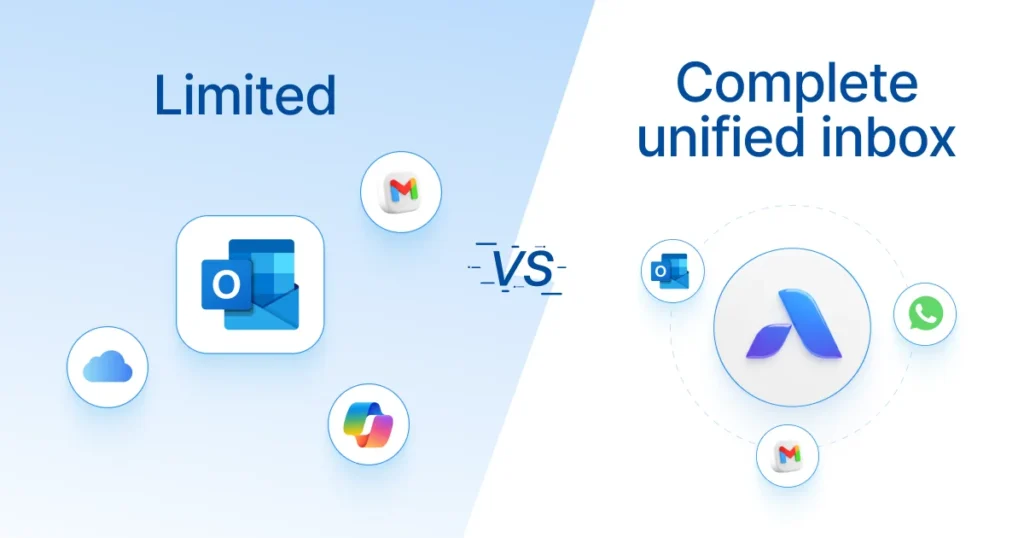
Here’s the catch with everything above. Outlook was built to organize email. That’s it. Today, your customers and your team aren’t just emailing you. They’re messaging on WhatsApp, commenting on social posts, sending DMs, and chatting through three or four other apps.
A Search Folder can’t pull in a WhatsApp message. A VBA Macro can’t sort your Instagram DMs. No amount of Rules & Alerts will catch a missed comment on a Facebook post. Outlook’s unified inbox tricks only unify your email, and email is just one channel out of many now.
This is the real reason so many small business owners feel like they’re drowning even after they’ve set up every hack in this guide. The problem isn’t only email overload. It’s tool overload across the whole business.
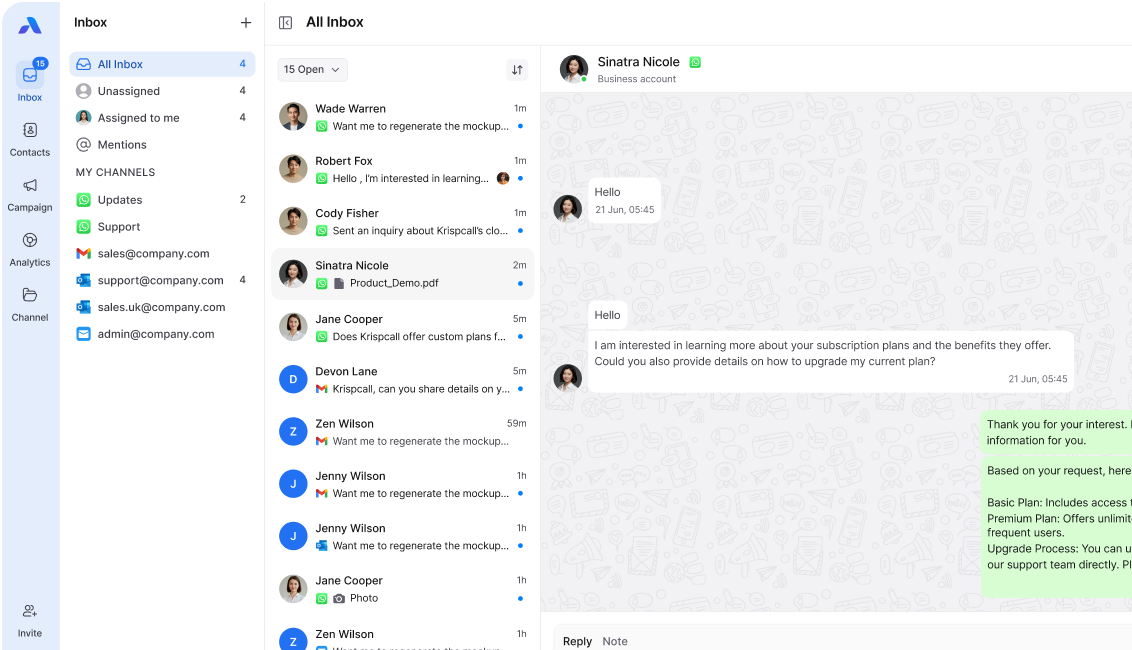
airchannel.ai was built to solve that bigger problem. Instead of stitching together folders and rules inside one email app, it brings your email, social media, and chat channels into one true unified inbox. Every message, from every channel, lands in one place, with no macros to write and no rules to maintain.
Try the Real Unified Inbox
If you’ve made it this far, you’ve probably tried a few of these Outlook hacks already, and you’re still checking too many places. That’s normal. Outlook just wasn’t built to hold your whole business.
If you’re ready to stop patching together folders and rules, give AirChannel AI a try. See what it feels like to have one true unified inbox for email, social, and chat, all in a single screen.