Five people. One inbox login. Zero clarity on who replied to what.
That’s the daily reality for growing teams. A lead emails on Monday. Someone replies. Someone else replies again on Wednesday, unaware the first response ever happened. Meanwhile, a WhatsApp message sits unread because everyone assumed a teammate had it covered.
This is the “I thought you had it” problem, and it costs teams real revenue.
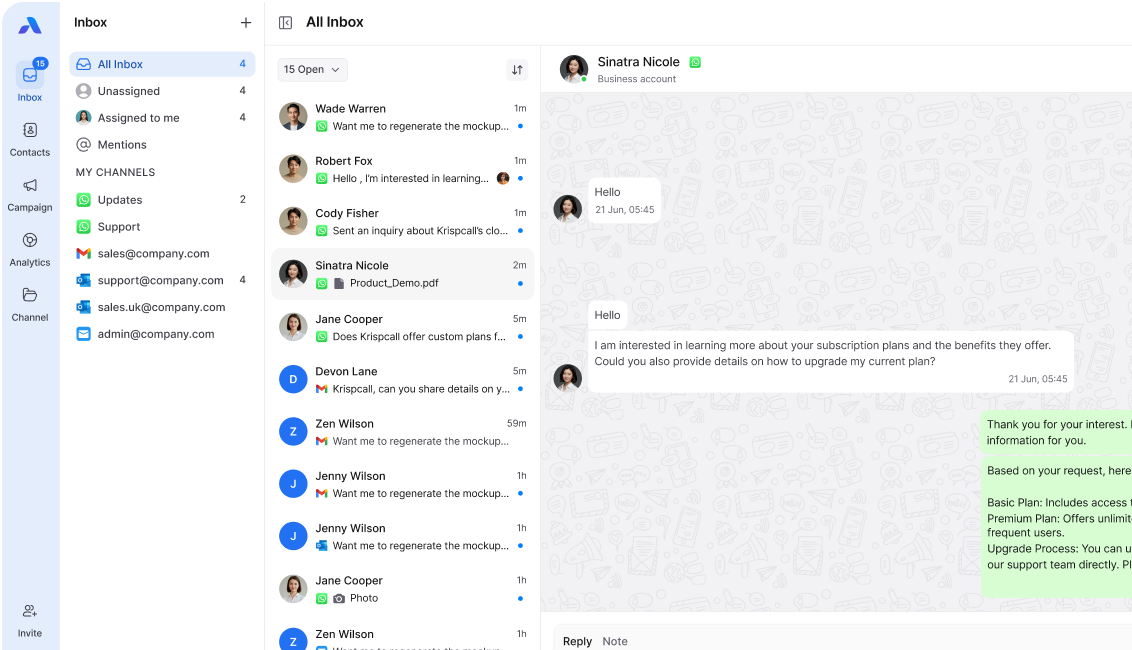
A unified inbox solves half the puzzle. It pulls email, WhatsApp, and other channels into one place so nothing gets lost across apps. But a unified inbox alone doesn’t assign ownership, track response times, or stop two people from answering the same customer twice.
That’s where a shared inbox workflow comes in. It’s the operational layer that turns a unified inbox from a message dump into an accountable system.
Below is a 5-step blueprint to build that workflow, so your team of 5+ replies faster, avoids duplicate work, and turns inbox chaos into a genuine competitive edge.
Why Traditional Email Fails Teams of 5+

At small scale, a shared login works fine. Two people can track who replied to what without much effort. But somewhere around the fifth team member, the system quietly breaks.
Part of this is psychological. Researchers call it diffusion of responsibility: the more people who see a message, the less any one person feels obligated to act on it. In a shared inbox, every unread message becomes “someone else’s job,” and messages sit untouched not because the team is lazy, but because ownership was never assigned in the first place.
The rest of the problem is technical. Once 5 or more people share a single login, three specific failures show up fast:
- Security and verification blocks. Google and WhatsApp flag one account being accessed from five different devices and locations as suspicious activity. This triggers login blocks, two-factor prompts, or full lockouts, often at the worst possible moment.
- Zero visibility into who’s replying. There’s no “typing” indicator between teammates. Two people draft responses to the same customer at the same time, and the customer ends up with two different answers to the same question.
- The forwarding nightmare. Internal context like “can you handle this one?” or “already replied, ignore” gets buried in FW: FW: FW: chains. That discussion lives in a separate thread, disconnected from the original customer message, so anyone checking the inbox later has no idea what was decided.
None of these problems are dramatic on their own. But together, they add up to a hidden tax on the team, paid in duplicate work, missed replies, and time spent untangling who said what.
The 5-Step Shared Inbox Workflow for High-Growth Teams
Fixing inbox chaos isn’t about working harder. It’s about building a system where every message has an owner, a timeline, and a clear path to resolution. Here’s how to build that system in five steps.
Step 1: Instant Triage & Ownership
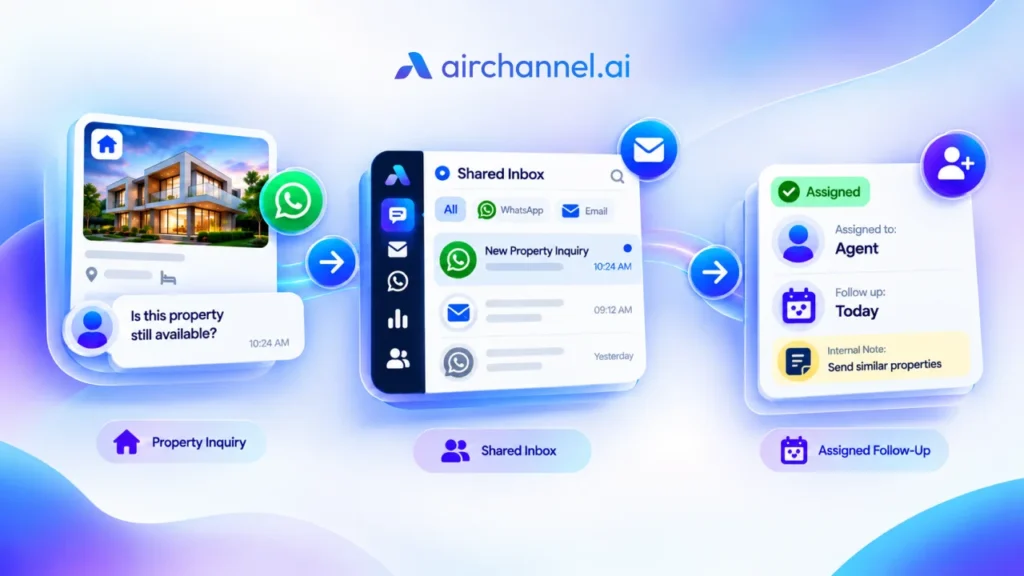
The golden rule is simple: every incoming message gets assigned to a specific person, immediately. Not “the team.” Not “whoever sees it first.” One name, one owner.
Set a hard limit of 10 minutes for any message to sit in an “Unassigned” state. If a message crosses that line, that’s a signal your triage process needs attention, not a reason to let it slide. Assign a team lead to spot-check the unassigned queue during business hours until the habit sticks.
Step 2: Use Internal Notes Instead of Slack
When a teammate needs help answering a customer, the conversation should happen next to the customer’s message, not in a separate app. Jumping to Slack or a WhatsApp group to ask “how should I handle this?” splits the context in two places. Anyone who checks the thread later has to piece together what happened from scratch.
This is where internal notes matter. AirChannel lets your team leave private notes directly on a customer thread, so the discussion, the decision, and the final reply all live in one place. No forwarding, no separate app, no lost context.
Step 3: Enable Collision Detection

Two teammates drafting a reply to the same customer at the same time is one of the most common ways teams waste effort and confuse customers. Collision detection solves this by showing a live “teammate is typing” alert whenever someone else opens the same conversation. AirChannel builds this in by default, so your team sees it happening in real time instead of finding out after two conflicting replies have already gone out.
Step 4: Set Channel-Specific SLAs
Not every channel deserves the same response time. WhatsApp is a real-time channel, and customers expect a reply within 15 to 30 minutes. Email carries a slower expectation, typically 2 to 4 hours, since it’s not built for instant back-and-forth.
Set these SLAs explicitly and make them visible to the whole team. A single SLA applied to every channel either rushes your email responses unnecessarily or leaves WhatsApp customers waiting too long.
Step 5: Build the Clean Inbox Habit
An inbox that never gets archived becomes an inbox nobody trusts. Once a conversation is fully resolved, archive it. This keeps the active queue focused on what actually needs attention today.
Make archiving part of the close-out process for every conversation, not an occasional cleanup task. A clean inbox is faster to scan, easier to manage, and far less likely to let a message slip through unanswered.
How to Measure the Success of Your Workflow
A workflow is only as good as the data it produces. Without tracking the right metrics, you’re guessing whether the new process is actually working or just feels better. Three numbers tell you the real story.
First Response Time (FRT). This measures how long a customer waits for the first reply, and it matters most on WhatsApp, where customers expect near-instant contact. A rising FRT on WhatsApp is often the first sign that triage is breaking down.
Resolution Time. FRT tells you how fast you acknowledge a customer. Resolution time tells you how fast you actually solve their problem. A team can have a great FRT and still leave customers waiting days for a real answer, so track both.
Teammate Load. A shared inbox can hide an uneven workload. One person might be closing 80% of conversations while others handle 20%, and without visibility into individual load, that imbalance goes unnoticed until someone burns out. Review load distribution weekly, not just at review time.
Together, these three metrics turn “I think the workflow is working” into “I know exactly where it’s working and where it isn’t.”
Frequently Asked Questions
What’s the actual difference between a shared inbox and a distribution list?
A distribution list just copies a message to multiple inboxes with no ownership. A shared inbox assigns each message to one person, tracks its status, and shows the whole team who’s handling what. The difference is accountability, not just visibility.
Can team members see each other’s private emails in a shared inbox?
No. A shared inbox only shows conversations from the connected shared account, like a support or sales alias. Personal, individual email accounts stay completely separate and private.
How does a shared inbox handle WhatsApp differently than the standard phone app?
The standard WhatsApp app ties one number to one device, so only one person can respond. AirChannel connects that same number to your whole team, letting multiple people reply, assign chats, and add internal notes without sharing a phone.
How long does it actually take to move a team of 5+ to this workflow?
Most teams complete setup within a day. The technical migration is fast, since the real timeline depends on how quickly the team adopts the assignment and internal notes habits in the first week.
Conclusion: From Chaos to Competitive Advantage
The teams that scale past 5 members without falling into chaos aren’t the ones with the best individual reps. They’re the ones that made the shift from a shared login to a shared workflow. Ownership, internal notes, collision detection, channel-specific SLAs, and a clean inbox habit aren’t small tweaks. Together, they turn a chaotic inbox into a system your team can trust.
Ready to see what a calm, organized inbox feels like? AirChannel gives your team the tools to manage WhatsApp and Email in one unified, accountable workspace. [Start your free trial today].