Your team is all replying from one WhatsApp number, and it’s starting to fall apart. Someone assumes a teammate already answered a customer. A lead from last week is still sitting unread. Two people typed replies to the same message at the same time.
This is one of the most common growing pains for small sales and support teams. It usually starts with one phone. Then it becomes “just log in when you’re free.” Then it stops working.
Quick Answer
Multiple people can manage one WhatsApp number in two main ways. WhatsApp’s own linked devices and multi-agent tools let a few people access the same account from different phones or computers. A shared WhatsApp inbox goes further, giving each teammate their own login, letting you assign conversations, add internal notes, and see who is handling what. Small teams with simple needs can often start with WhatsApp’s native options. Teams juggling sales, support, and multiple channels usually need a shared inbox to keep conversations from slipping through the cracks.
Can Multiple People Use One WhatsApp Number?
Yes, but how well it works depends on your setup and how many people are involved.
WhatsApp Business lets you link additional devices to one account, so more than one person can see and reply to messages. According to WhatsApp’s current Help Center, the standard linked-device limit is 4 devices. With the multi-agent benefit, tied to a Meta Verified subscription, that increases to up to 10 devices, and adds the ability to name devices, assign chats to specific agents, and see which device sent a message. These limits are set by WhatsApp and Meta and can change, so it’s worth checking the official Help Center for the current numbers before you plan around them.
This works fine for a very small team with a light volume of conversations. It gets harder once your team grows past a handful of people, or once sales and support both need access to the same number.
The important distinction to understand is access versus workflow. Letting people into the account is not the same as giving them a system for managing what comes through it. A shared inbox adds that system on top of, or instead of, WhatsApp’s native access.
What Is WhatsApp Multi-Agent?
Multi-agent is a feature built into the WhatsApp Business app, tied to a Meta Verified subscription. Per WhatsApp’s current documentation, the standard limit is 4 linked devices. With multi-agent enabled, that rises to up to 10 linked devices, and you gain two extra capabilities: assigning chats to specific agents, and seeing which device or agent sent a message from inside the conversation. Because these limits are controlled by Meta and can be adjusted, treat the exact numbers as a snapshot rather than a permanent rule.
It’s worth being precise about what this is and isn’t, because the terminology gets mixed up a lot:
- WhatsApp Business App is the free mobile app most small businesses start with. Multi-agent, when available, lives inside this app.
- WhatsApp Business Platform (the API) is a separate, developer-facing product used by larger businesses and by software platforms like shared inbox tools. It doesn’t have a device limit the way the app does, because it isn’t tied to a phone at all.
- Linked devices let a secondary phone, tablet, or computer mirror your primary phone’s WhatsApp account.
- Shared inbox is a third-party product layered on top of either the app or the API, built specifically for team collaboration.
Multi-agent solves visibility. Several people can see the same conversations and know who sent what. It does not solve ownership, internal collaboration, or reporting on its own. Assigning a chat to someone inside the WhatsApp app tells the team who’s responsible in the moment, but there’s no internal notes feature, no tagging, and no way for a manager to see workload across the team without opening the app themselves.
From the customer’s perspective, the conversation still comes from the same business number.
Is WhatsApp Multi-Agent the Same as a Shared Inbox?
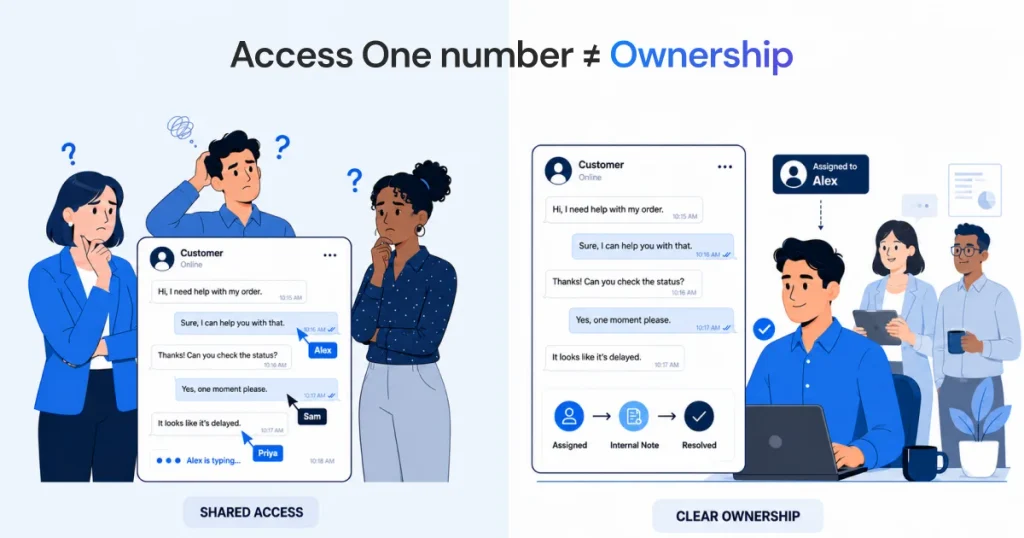
No. They’re related, but they solve different-sized problems.
Shared access means multiple people can log in and reply. WhatsApp’s linked devices and multi-agent feature both live here.
Operational workflow means the team has a system: clear ownership per conversation, a place for internal discussion, tags to organize conversations by type or urgency, and reporting a manager can actually use. This is what a shared inbox is built for.
Shared access is not the same as shared ownership.
Giving five people the login doesn’t tell you who’s supposed to reply to a given customer, what happened on a conversation before you opened it, or how many unresolved chats are sitting in the queue right now. The multi-agent chat assignment feature is a start, but it lives inside a consumer messaging app, not a tool built around team accountability.
| Capability | WhatsApp multi-agent / linked devices | Shared WhatsApp inbox |
| One customer-facing WhatsApp number | Yes | Yes |
| Multiple team members | Yes, up to device limits | Yes |
| Shared conversation visibility | Yes | Yes |
| Conversation assignment | Yes, with multi-agent enabled | Yes |
| Clear ownership | Basic, chat-level only | Yes |
| Internal notes | Not available | Yes |
| Team collaboration | Limited to WhatsApp’s built-in tools | Strong |
| Tags/organization | Not available | Yes, depending on platform |
| Team reporting | Not available | Yes, depending on platform |
| Cross-channel communication | No | Depends on platform |
| WhatsApp + email in one workspace | No | Possible with a unified inbox |
What Happens If Your Team Doesn’t Reply Within 24 Hours?
This part applies specifically to the WhatsApp Business Platform (the API). If you’re using WhatsApp Messenger with a tool such as AirChannel instead of the Business Platform, the setup and messaging rules can be different, so don’t assume this rule applies to every shared inbox tool by default.
When a customer messages your business through the Business Platform, it opens a 24-hour customer service window. Inside that window, your team can send normal free-form replies. Once 24 hours pass without a new message from the customer, the window closes, and your business generally needs an approved message template to start the conversation again.
This is another reason response ownership matters. Teams using the WhatsApp Business Platform need to keep track of conversations approaching the end of the customer-service window, since a conversation that sits unassigned can quietly slip past it.
Why Sharing One WhatsApp Phone Stops Working as Your Team Grows
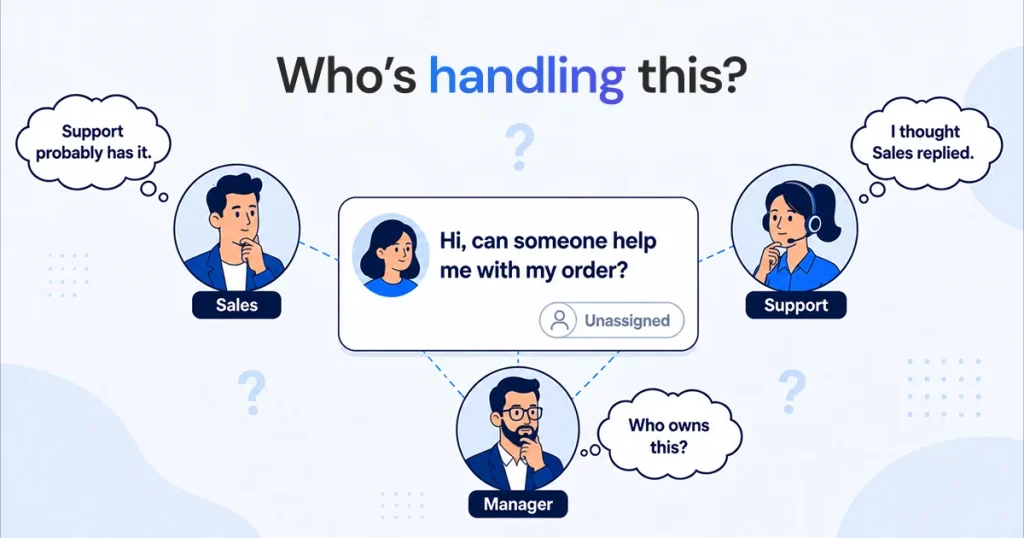
None of these situations are dramatic on their own. They just add up.
“Who is replying to this customer?” Two people see the same message land. Each assumes the other is on it. The customer waits, then messages again, more annoyed the second time.
“Did anyone follow up?” A salesperson says they handled a lead. A teammate has no way to confirm what was actually said, so the next touch either repeats information or contradicts it.
The person responsible is out. The teammate who usually handles WhatsApp is on leave or just busy with something else. Nobody else knows the context of the open conversations, so they sit untouched.
Another department needs to weigh in. Sales gets a technical question they can’t answer. Right now that means a screenshot, a message to Support in Slack, an answer typed back, and another screenshot sent to the customer. It works, but it’s slow and easy to lose track of.
Volume outgrows the phone. At ten conversations a day, a shared phone is annoying but manageable. At a hundred, nobody can tell what’s open, what’s answered, and what’s been sitting for two days.
What Happens When Everyone Can See the Same WhatsApp Messages?
Visibility alone doesn’t fix any of this. A team that can all see the same inbox still needs:
- Visibility into new and ongoing conversations
- Ownership, so someone is responsible for each one
- Assignment, so ownership is explicit instead of assumed
- Internal communication, without leaving the conversation
- Conversation history, so context isn’t lost between people
- Follow-up, so nothing sits open by accident
- Reporting, so a manager can see what’s actually happening
A shared inbox should not only show your team the messages. It should make it clear what happens next.
How Can a Team Work From One WhatsApp Number?
1. Connect the existing WhatsApp number. You don’t need to switch numbers or start over. Whether you’re connecting through linked devices or through the WhatsApp Business Platform, the same customer-facing number stays in place.
2. Give team members their own access. Individual logins, rather than one shared login, mean you can tell who did what, and you can remove access for one person without resetting it for everyone.
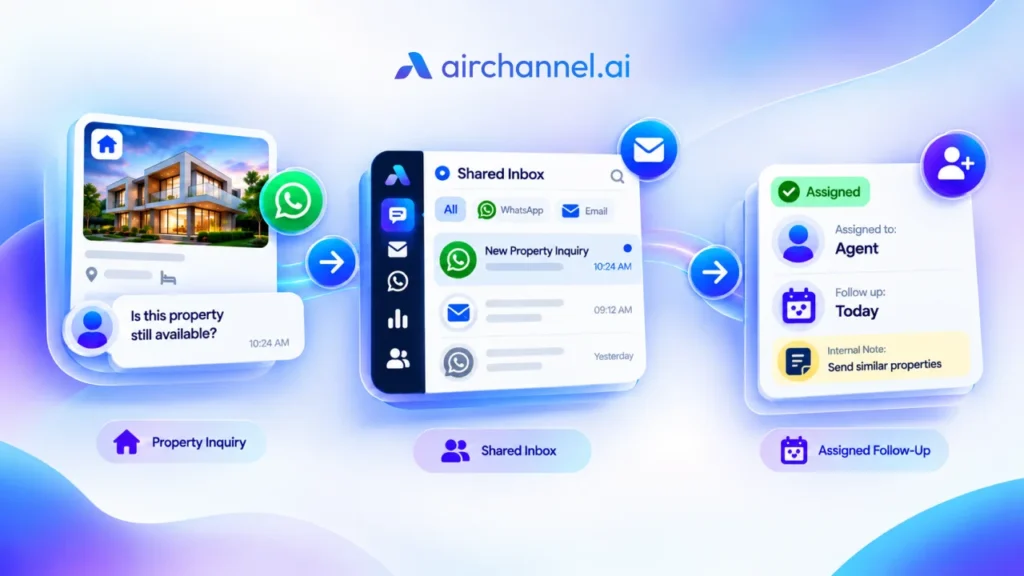
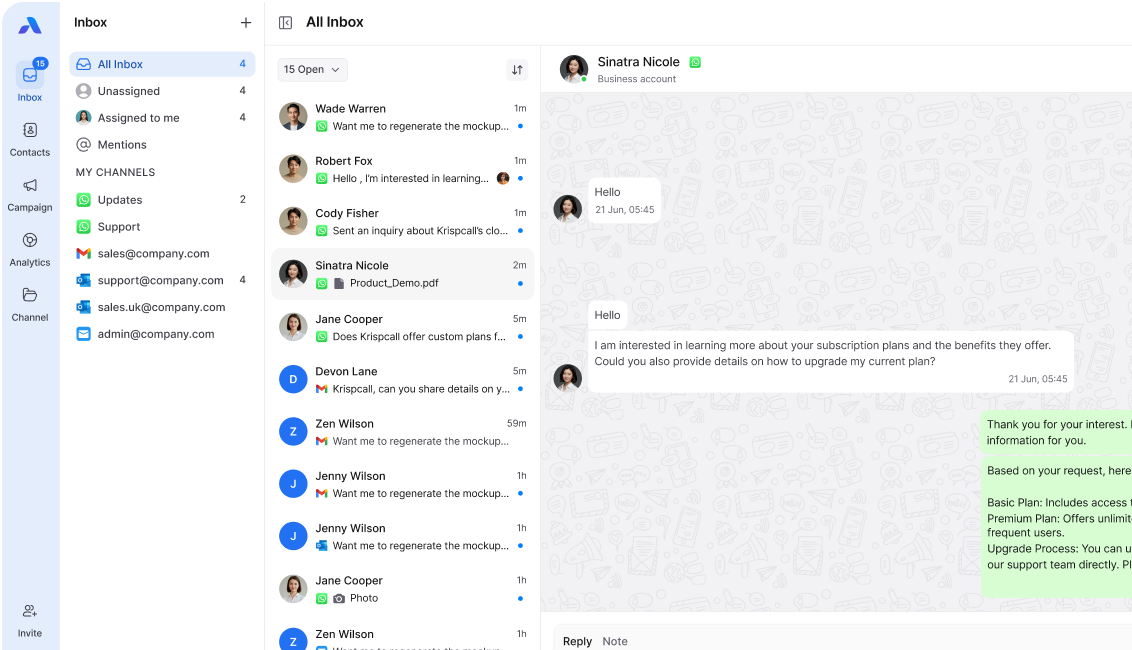
3. Bring conversations into a shared workspace. Instead of everyone staring at the same phone screen, conversations land in a central queue that the whole team can see and work from.
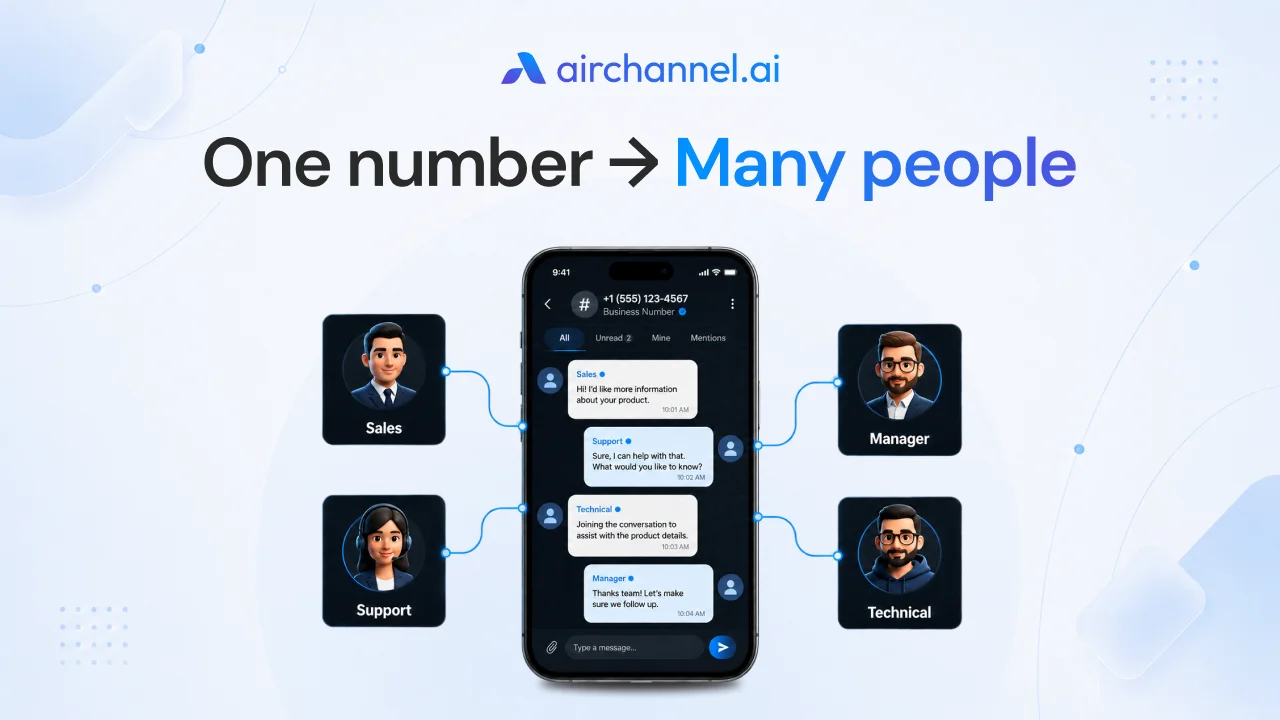
4. Assign conversations. A new sales inquiry goes to Sales. An existing customer’s issue goes to Support. A technical question goes to the technical team. Assignment turns “someone should probably answer this” into “this person is answering this.”
5. Use internal notes for collaboration. When a teammate needs input from another department, they leave a note on the conversation instead of forwarding a screenshot into a group chat.
6. Reply from the shared workspace. The customer still sees one business number. They have no idea whether Sales or Support answered, and that’s exactly how it should look from their side.
7. Track conversations and follow-ups. A manager needs to see workload across the team: what’s open, what’s overdue, and who’s carrying the most conversations. That’s hard to do by scrolling through a phone.
One WhatsApp Number, Different Teams: Who Should Handle What?
Setting up simple routing rules ahead of time saves a lot of back-and-forth later.
| Customer message | Team | Action |
| “How much does this cost?” | Sales | Assign to Sales |
| “Where is my order?” | Support | Assign to Support |
| “Can I get a custom package?” | Sales | Tag as sales opportunity |
| “I’m having an integration issue.” | Technical | Assign to Technical |
| “Can you send me my invoice?” | Finance | Assign to Finance |
How Do You Stop Two Employees From Replying to the Same WhatsApp Customer?
The fix isn’t asking people to communicate more carefully. It’s removing the ambiguity in the first place.
Give every conversation a clear owner the moment it comes in, either through auto-assignment rules or a quick manual claim. Mark conversations by status, so it’s obvious at a glance whether something is open, waiting on the customer, or resolved. Set a simple handoff rule: if you’re stepping away from a conversation, leave a note before you go, don’t just leave it. And make sure the whole team can see who owns what, so nobody has to ask.
How Do Teams Collaborate Without Forwarding WhatsApp Screenshots?
This is usually where the screenshot-and-Slack shuffle happens. Customer asks Sales a question that needs Support’s input. Without a shared workspace, that turns into:
WhatsApp screenshot → message to Support in a separate app → answer typed back → screenshot sent to the customer.
It works, but it’s slow, and there’s no record of it tied to the actual conversation. With internal notes built around the conversation itself, Sales can tag Support directly on that customer’s thread, Support replies with the answer inline, and Sales sends it to the customer without ever leaving the conversation. Nothing gets lost, and the next person who opens that chat can see exactly what was discussed.
What If a Customer Contacts You on WhatsApp and Email?
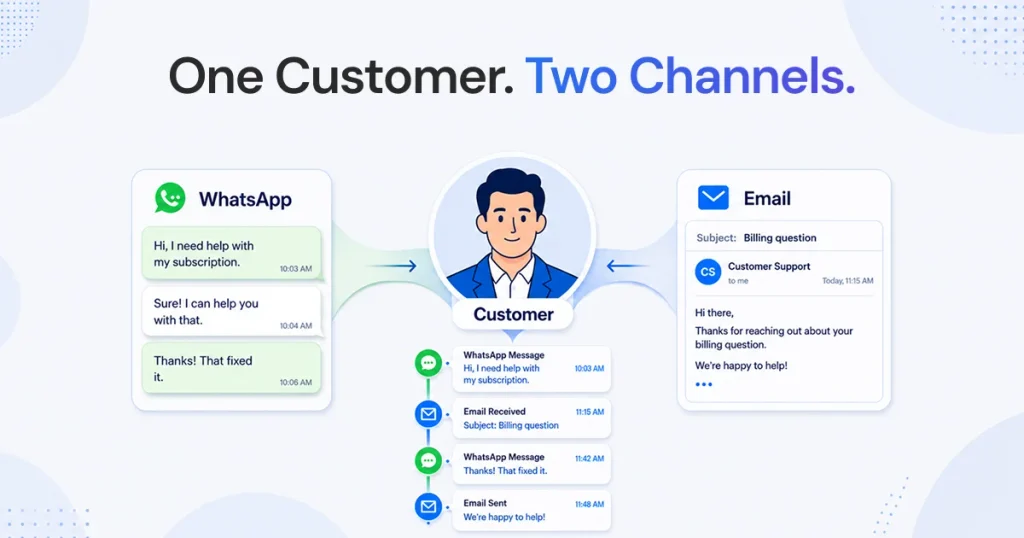
This is where a WhatsApp-only solution runs into its limits.
A customer messages your business on WhatsApp with a question. Sales replies. A few days later, that same customer emails a follow-up question to your support address. Unless the person handling that email happens to check WhatsApp too, they have no idea the earlier conversation happened. The customer has to repeat themselves, or the reply misses context they already gave.
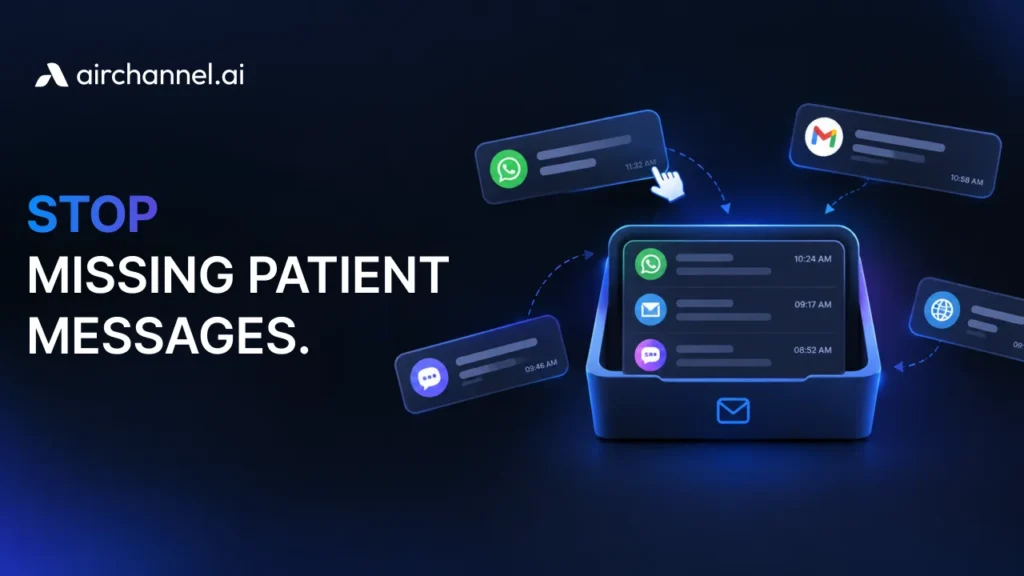
A unified inbox brings WhatsApp and email into the same workspace, so the person answering the email can see what was said on WhatsApp without hunting for it. This matters most for teams whose customers naturally switch between channels, which is most B2B and e-commerce teams sooner or later.
This is where AirChannel becomes relevant, not as a replacement for WhatsApp, but as the layer that keeps WhatsApp and email conversations connected to the same customer.
WhatsApp Multi-Agent vs Shared Inbox vs Unified Inbox
| WhatsApp multi-agent / linked devices | Shared WhatsApp inbox | Unified inbox | |
| One WhatsApp number | Yes | Yes | Yes |
| Multiple users | Yes, up to device limits | Yes | Yes |
| Conversation assignment | Yes, chat-level | Yes | Yes |
| Internal notes | No | Yes | Yes |
| Team collaboration | Basic | Yes | Yes |
| Tags | No | Usually | Yes |
| Reporting | No | Usually | Yes |
| WhatsApp + email | No | Depends | Yes |
| Best for | Small/simple teams | WhatsApp-focused teams | Multi-channel teams |
One WhatsApp Number: Access, Ownership, and Customer Context
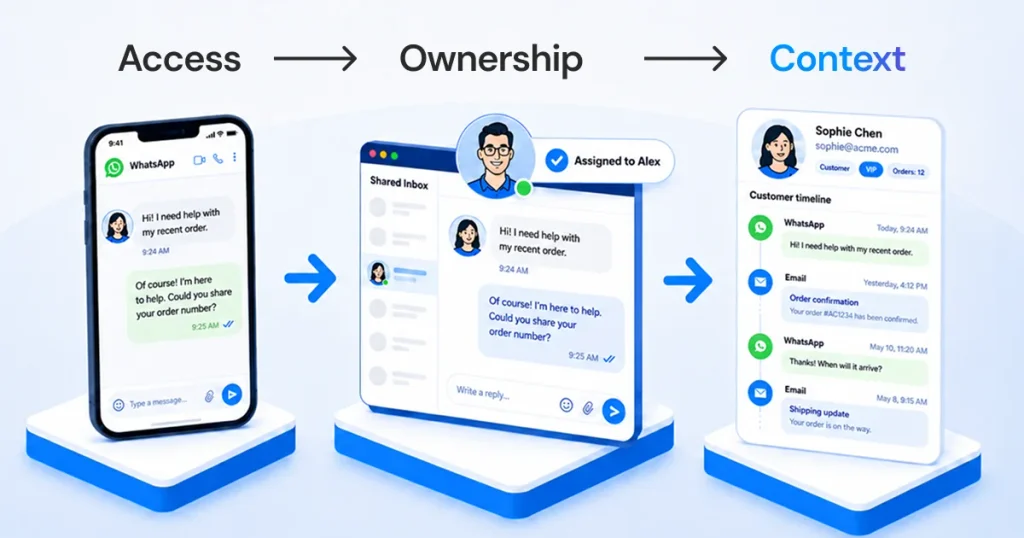
It helps to think of this as three separate problems, not one:
| Stage | What you’re solving |
| Multi-device access | “Can more than one person see and reply to WhatsApp?” |
| Shared inbox | “Who is responsible for this conversation, and what happened before I opened it?” |
| Unified inbox | “Do we know this customer’s full communication history, across every channel?” |
Most teams start at the first stage without realizing there are two more. You don’t have to solve all three at once, but it’s worth knowing which problem you actually have before picking a tool.
When You Don’t Need a Shared WhatsApp Inbox
You don’t need a shared inbox just because two people need access to WhatsApp.
If your team is small, your message volume is low, and conversations rarely need a handoff between people, WhatsApp’s native linked devices and multi-agent tools may genuinely be enough. Adding a shared inbox on top of a setup that’s already working smoothly just adds another tool to manage.
A shared inbox earns its place once ownership, handoffs, and reporting become real problems, not before.
Which Setup Is Right for Your Team?
Solo business. The free WhatsApp Business app is usually enough on its own.
Very small team. Linked devices, with multi-agent enabled if your Meta Verified plan includes it, can work if your conversation volume stays light and your workflow stays simple.
Growing sales or support team. A shared WhatsApp inbox becomes worth it once you need real ownership, assignment, and internal collaboration, not just shared visibility.
Sales and Support sharing one number. A structured team inbox with routing rules is a better fit than everyone working out of the same queue.
Business using WhatsApp and email together. A unified inbox pays off here, because the value isn’t just managing WhatsApp better, it’s keeping the full customer conversation together across channels.
Common Mistakes Teams Make When Sharing One WhatsApp Number
- Assuming someone else already replied, when nobody actually claimed the conversation
- Letting conversations sit with no owner at all
- Sharing one login across the whole team, making it impossible to tell who did what
- Losing important conversations in a long, unsorted chat list
- Handling follow-ups manually, with no reminder system
- Using screenshots for internal handoffs instead of notes attached to the conversation
- Having no routing rules between Sales and Support
- Giving managers no visibility into who’s carrying the workload
- Letting customer context split between WhatsApp and email with no way to reconnect it
Each of these has a straightforward fix: assign conversations by default, give people their own logins, set routing rules in advance, and keep internal discussion attached to the conversation instead of in a separate app.
How AirChannel Helps Teams Manage One WhatsApp Number
AirChannel is a shared inbox built around WhatsApp, Gmail, Outlook, and IMAP in one workspace. It connects to your existing WhatsApp Messenger number directly, without requiring a move to the WhatsApp Business API, number changes, or an approval process. That’s particularly useful for teams that want to turn the WhatsApp number they already use into a shared team inbox without taking on an API migration.
It maps fairly directly onto the problems this article has walked through:
| Team problem | AirChannel capability |
| “Who is handling this conversation?” | Conversation assignment |
| “I need input from Support before I reply.” | Internal note threads |
| “Find all the sales leads in this mess.” | Tags and filters |
| “How is the team actually performing?” | Real-time analytics |
| “This customer emailed after messaging on WhatsApp.” | Unified WhatsApp + email inbox |
The part that’s harder to get from WhatsApp’s native tools or a WhatsApp-only shared inbox is that last row. When a customer moves between WhatsApp and email, AirChannel keeps that conversation history connected, so whoever picks it up next has the full picture instead of starting from scratch.
AirChannel is currently in early access. If your team’s WhatsApp setup has hit its limits, it’s worth a look, particularly if email is part of your customer communication mix too.
If your team has outgrown a single WhatsApp phone, you may not need another number for every employee. You may need a better way to manage the conversations coming through the number you already have.
See how AirChannel can help your team manage customer conversations from one place.
FAQ
Can multiple people use the same WhatsApp number for business?
es. WhatsApp Business supports linked devices, and a Meta Verified subscription with multi-agent enabled increases that limit and adds chat assignment. Beyond that, third-party shared inboxes connect through the WhatsApp Business Platform to support larger teams.
How can my team manage one WhatsApp number?
Smaller teams can use WhatsApp’s linked devices and multi-agent features directly inside the WhatsApp Business app. Teams that need clear ownership, internal notes, and reporting typically move to a shared WhatsApp inbox instead.
Can multiple employees reply to the same WhatsApp chat?
Yes, whether through linked devices or a shared inbox. The risk is two people replying at once without realizing it, which is why conversation assignment and status tracking matter as the team grows.
How many people can manage one WhatsApp number?
Through WhatsApp’s own app, up to 10 devices can be linked with multi-agent enabled, or 4 without it. Shared inbox platforms built on the WhatsApp Business Platform generally support far larger teams.
How can I use one WhatsApp account on multiple devices?
Link additional devices from Settings inside the WhatsApp Business app by scanning a QR code from your primary phone. Each device stays connected as long as the primary phone has been active within the last 14 days.
Can sales and support use the same WhatsApp number?
Yes, and it’s common. It works best with routing rules in place, so incoming messages get assigned to the right team based on what the customer is asking about.
How do I stop two employees from replying to the same customer?
Assign conversations to a specific person as soon as they come in, and make ownership visible to the whole team so nobody has to guess who’s handling it.
Can I assign WhatsApp conversations to different employees?
Yes. WhatsApp’s multi-agent feature supports basic chat assignment inside the app. Shared inboxes extend this with routing rules, internal notes, and reporting on top of assignment.
Do I need a new WhatsApp number for every employee?
No. The point of multi-agent access and shared inboxes is letting a team work from one number, not creating a separate number per person.
Can I manage WhatsApp and email in the same inbox?
Yes, with a unified inbox. This matters when customers move between channels, so the person answering an email can see what was already said on WhatsApp.
Sources Used for Factual Verification
- WhatsApp Help Center, “About multi-agent” (faq.whatsapp.com) — device limits, multi-agent capabilities, chat assignment behavior
- WhatsApp Help Center, “About Meta Verified for Business on WhatsApp” — subscription basis for multi-agent eligibility
- Missive Blog, “WhatsApp shared inbox: how teams handle WhatsApp messages together” — shared inbox definition and terminology
- Spur, “WhatsApp Shared Inbox for Teams: Complete Guide” — WhatsApp Business app device ceiling confirmation
- Twilio, “Key Concepts and Terms for the WhatsApp Business Platform” — 24-hour customer service window mechanics
- Enchant, “WhatsApp Business Platform 24 Hour Rule” — confirmation that the 24 Hour rule applies to the Business Platform, not the Business App
- AirChannel.ai homepage, WhatsApp product page, and FAQ page — current product positioning, confirmation that AirChannel connects via WhatsApp Messenger (not the Business API) in its current release, and early-access status